The Futures of Work, Decoded.
In-depth editorial coverage of workflow design, automation mechanics, and the systematic shift toward local-first knowledge infrastructure.
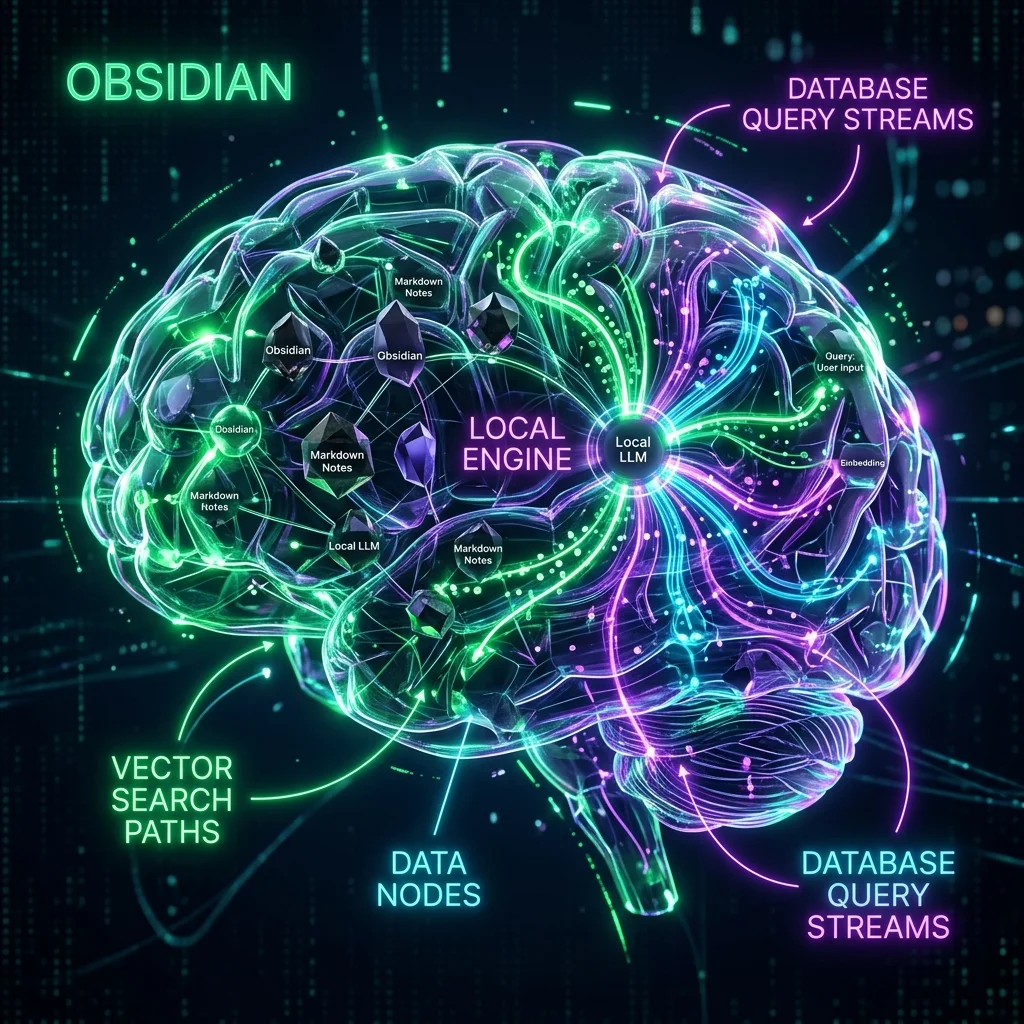
Running local Retrieval-Augmented Generation (RAG) within Obsidian turns your personal notes into a private database. By processing files locally, you get context-aware answers without sending private notes to the cloud. This guide outlines how to build a local vector index and query your notes offline. Transitioning to local files is highly recommended for developers who find that standard cloud-dependent second brain note systems fail over time.
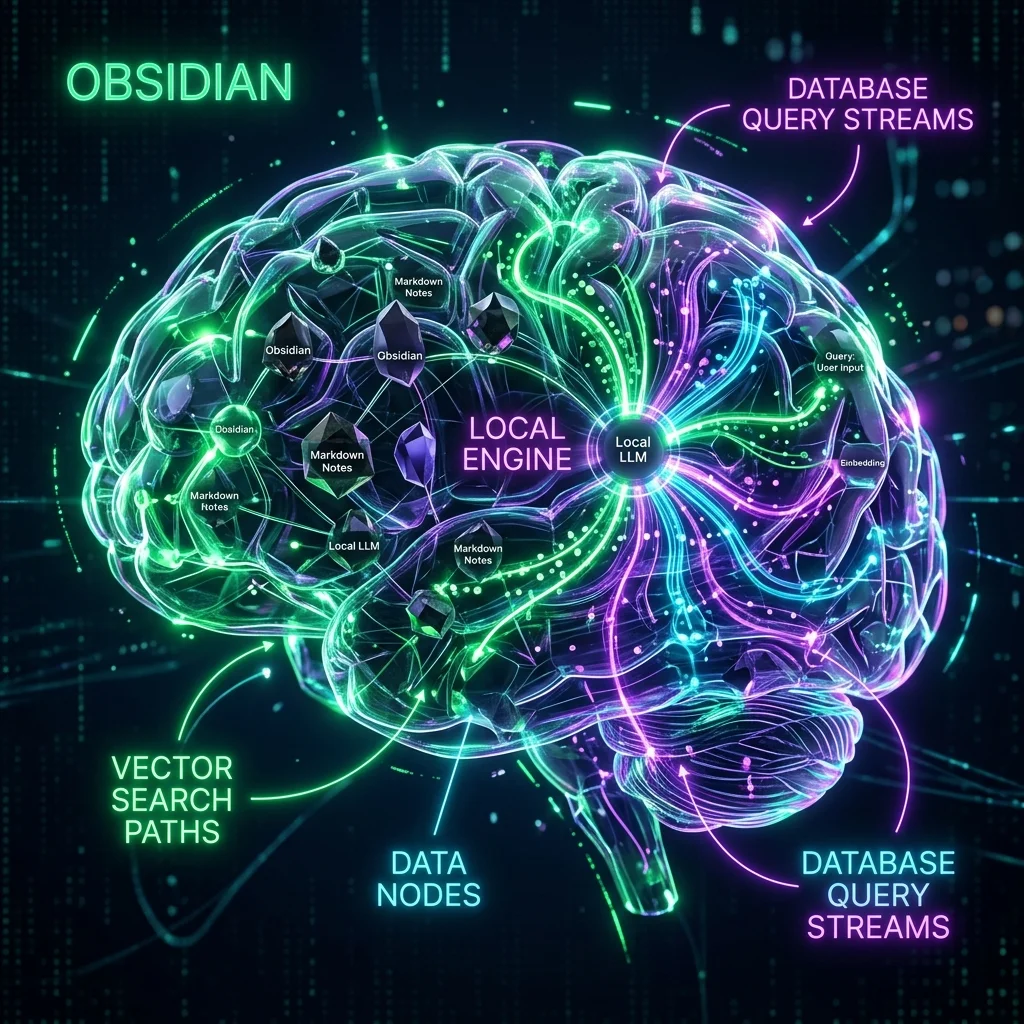
Semantic search matches notes by meaning rather than simple keyword matches. This allows you to discover connections across thousands of markdown files automatically. Traditional search fails when you use different terms for the same concept. Local RAG resolves this by converting your text into mathematical vectors.
An embedding model reads your notes and converts sentences into dense vector arrays. These arrays capture the semantic context of your writing. When you search, the model compares the query vector to your vault index. This discovery process finds notes that discuss similar topics using different words. Comparing this with a traditional systems comparison shows the power of neural indexing.
Using a model with a large context window is critical for long-form notes. Nomic Embed Text supports an 8192-token context window, allowing it to process entire folders without clipping text. This makes it highly superior to older, small-context models. Choosing the right model ensures your vector index stays accurate.
| Model Name | Dimension Size | Context Window | Processing Speed |
|---|---|---|---|
| Nomic Embed Text | 768 | 8192 | 350 tokens/sec |
| All-MiniLM-L6-v2 | 384 | 256 | 500 tokens/sec |
| BGE-Large-EN-v1.5 | 1024 | 512 | 120 tokens/sec |
"Local semantic search is only as good as your embedding model. Nomic's large context window is essential for long research vault files."
Ollama is the standard tool for running local models on consumer hardware. It handles model loading, memory management, and exposes a local API endpoint. By running Ollama offline, you ensure your note processing is private. It works on macOS, Windows, and Linux with simple CLI commands.
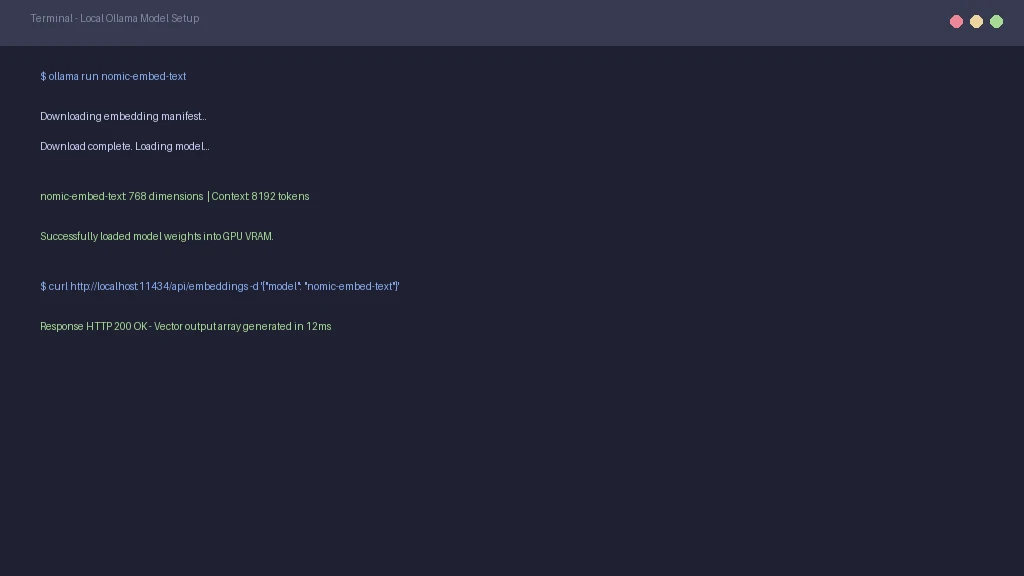
After installing Ollama, you must pull your models using the terminal. Run ollama pull llama3.3 to get your chat model and ollama pull nomic-embed-text for embeddings. These models run completely offline once the download completes. Review local LLM benchmarks to match models with your GPU memory.
Ollama runs a local web server at http://localhost:11434. Obsidian plugins use this local address to send prompts to your local models. You do not need an active internet connection to query this address. This offline setup protects your personal files from external network leaks.
Smart Connections is the leading Obsidian plugin for local vector indexing. It scans your vault, creates embeddings, and displays related notes in a sidebar panel. This helps you find old files as you write new ones. The plugin runs entirely on your local machine using your Ollama models.
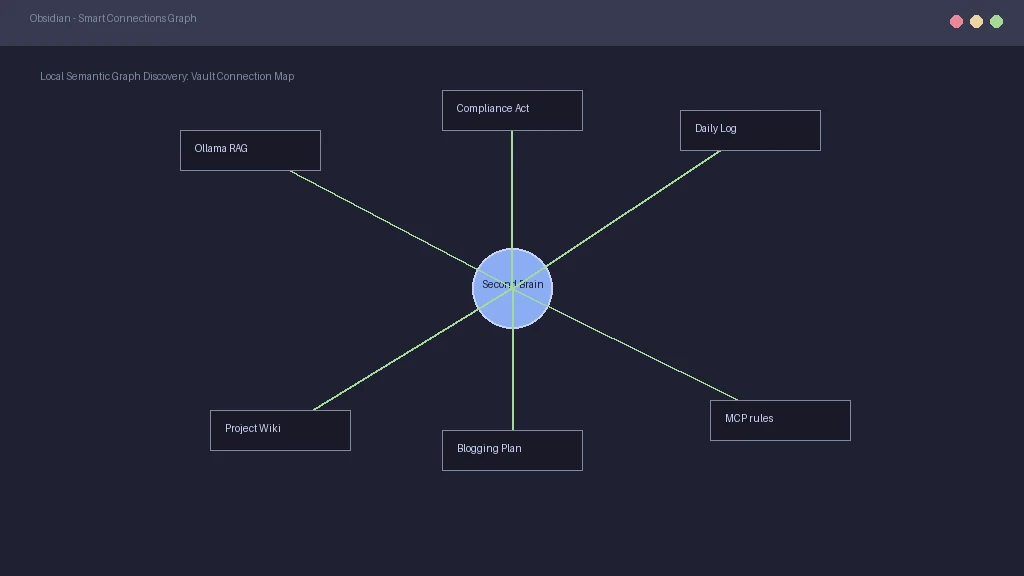
During the first setup, the plugin indexes every note in your vault. For a vault with five thousand notes, this takes about three minutes. The resulting vector index is saved locally as an SQLite database file. Future searches load from this local cache in under one hundred milliseconds.
If your index file corrupts, Smart Connections may display blank lists or hang during search. To resolve this, delete the smart-connections folder in your Obsidian settings and trigger a clean index scan. Keeping vault backups protects your notes from these local index crashes. Regular maintenance keeps your search speeds high.
The Copilot plugin provides a chat interface next to your note editor. You can ask questions about your vault, summarize open files, or generate drafts based on your notes. It connects directly to Ollama to read note context during conversations. This turns your vault into a personalized research assistant.
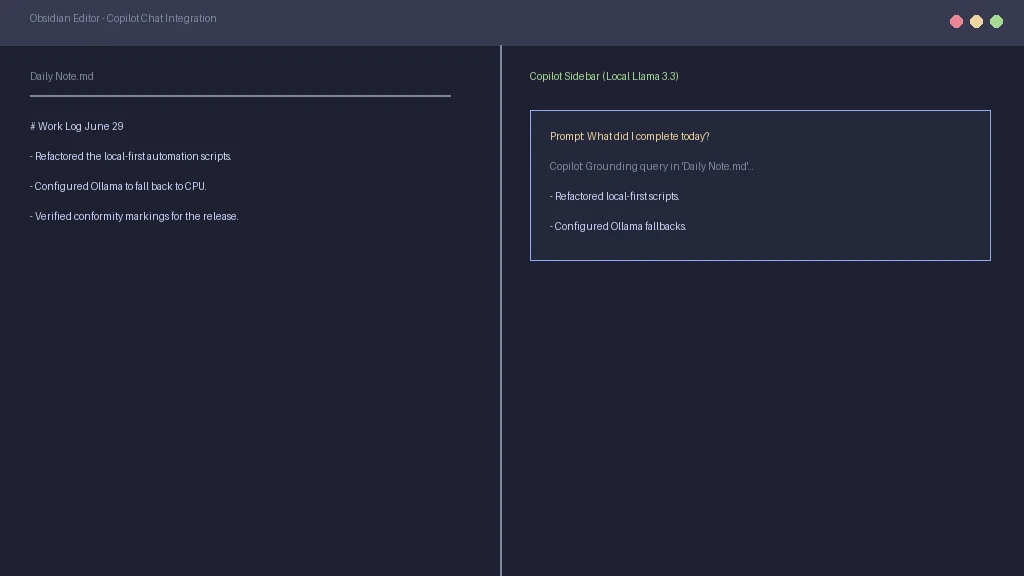
Copilot uses RAG to fetch relevant notes before answering your prompt. It appends the text of these notes to the model prompt as reference context. This grounding process ensures the model answers using your real notes instead of guessing. Grounded models provide much more accurate facts. This is highly reliable compared to complex cloud setups like Notion database automations.
If you feed too many notes to a local model, you can exceed its context limit. This causes the model to forget earlier inputs or hallucinate details. To prevent this decay, limit Copilot to retrieve only the top three most relevant notes. Managing your input token size is key to getting clean answers.
Text Generator is a template-driven plugin designed to expand text inline. You can select a block of text and run templates to summarize, format, or generate outlines. It works well for automating daily logging work. By connecting it to Ollama, you write faster without cloud subscription limits. This keeps your local templates highly flexible.
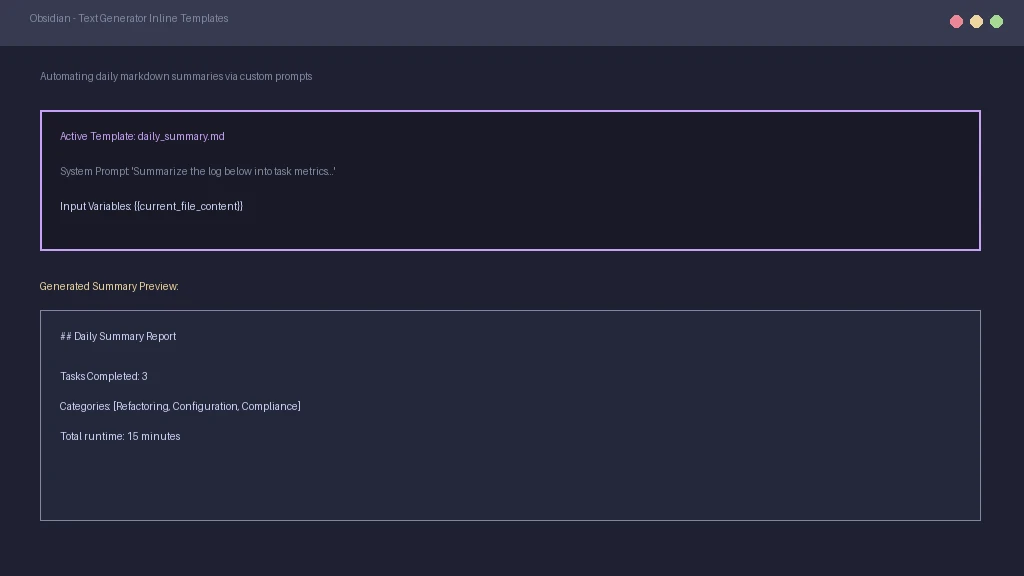
Developers write prompt templates using standard markdown files. You can create a template that reads your daily note and lists completed tasks. These templates feed vault variables directly to your local LLM. Custom templates allow you to build personalized productivity workflows.
Running a summary template at the end of the day compiles your logs into clean reports. This keeps your vault organized and saves time during weekly reviews. Because the system runs locally, you can automate these scripts without API overages. This makes local-first productivity stacks highly cost-effective.
For advanced setups, you can connect external tools to your vault using the Model Context Protocol (MCP). This allows autonomous tools to read and write notes on your behalf. While this enables powerful workflows, it requires strict file permission settings. Developers must secure their local files from rogue commands.
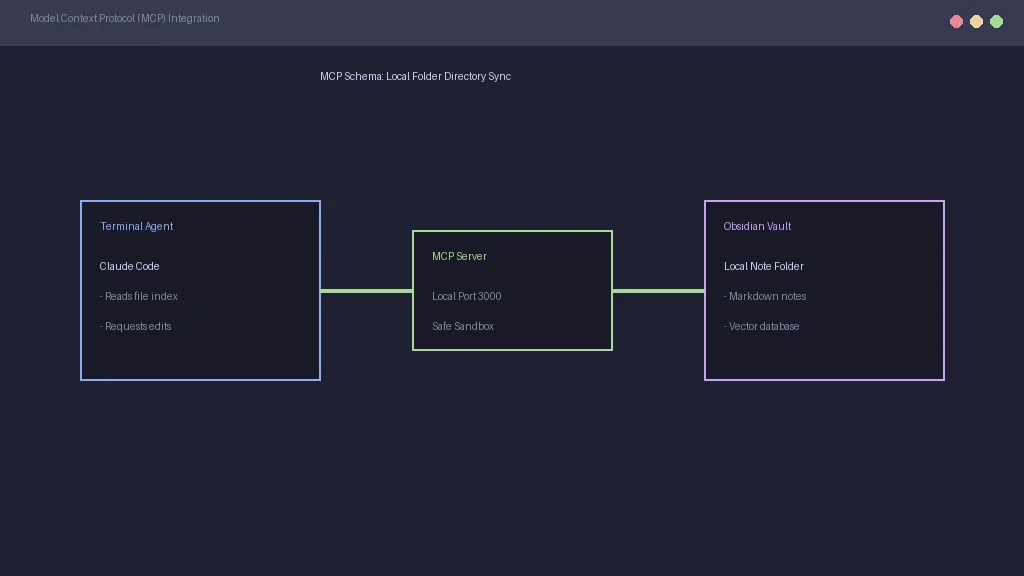
You can run an Obsidian MCP server that exposes your note folder to agents like Claude Code. This allows the agent to search your notes and update project wikis automatically. It creates a smooth bridge between your notes and your terminal. This is a major step beyond standard chat panels.
Exposing your notes to an agent requires setting strict read and write limits. You must restrict the MCP server to your specific vault directory. This prevents the agent from reading sensitive files elsewhere on your drive. Following these sandbox rules is essential because relying on a system with faulty operational logic leads to major privacy failures.
Is Obsidian AI RAG free to use? Yes, running local RAG with Ollama and Smart Connections is entirely free. You do not need to pay subscription fees, as the computations run on your local hardware.
How do users fix Smart Connections index corruption? To fix a corrupted index, delete the smart-connections folder in your Obsidian settings. Then, restart the plugin to run a clean index scan of your markdown files.
What is the best local LLM for Obsidian? Llama 3 8B and Qwen 2.5 7B are the leading choices for personal note assistants. They run efficiently on consumer GPUs and provide high-quality reasoning.
How do developers connect Claude Code to Obsidian? You can run a local Obsidian MCP server that exposes your vault folder. This allows Claude Code to read, search, and edit your notes directly from the command line.
Do local LLMs require an internet connection? No, once you install Ollama and pull your models, the entire system works completely offline. Your notes never leave your local drive.
Which note management plugins support local embedding exports? Smart Connections saves embeddings as local SQLite tables. These files are compatible with other productivity note managers that read semantic schemas.